Applies to platform: UTM 6.0, 4i Edge 6.0
Updated on: 16 Nov 2026
Functionality Description
With two-factor authentication, Endian VPN security is dramatically increased. Instead of just requiring a username and password, an additional piece of information is required that is generated by a token. In this case the authentication procedure is a combination of something you know (username and password) and something you have (time-based token). This prevents unauthorized VPN access even in the event your username and password are stolen or compromised since the attacker must also have the token information to successfully authenticate.
General Overview
The following steps are required to enable, configure and utilize two-factor authentication on an Endian UTM appliance. Each item will be further described in detail in the remaining article:
- User installs authenticator application on their smartphone (Android, iOS)
- An Endian administrator enables OTP on the authentication provider (in this case OpenVPN but a similar process can be done for L2TP or XAuth)
- An Endian administrator will enable OTP for a given user(s) VPN account and securely sends the QR code to the user who then adds it to their authenticator application on their smartphone.
- The user configures OTP on the Connect App and can now login.
User Prerequisite
Before enabling 2FA, all users will need a smartphone application that supports TOTP in order to setup and retrieve the one-time code . A number of compatible smartphone applications are already available. They are all available for free (other applications exist as well, this is only a short list):
| Platform | Apps |
| Android | Google Authenticator, Microsoft Authenticator |
| iOS | Google Authenticator, Microsoft Authenticator |
Enable OTP (on the UTM)
In order to use the two factor authentication, the OpenVPN provider must be configured to enable multi-factor authentication. To do this, an administrator should go to Authentication > Providers menu and click the edit button next to the OpenVPN provider (in this case Local Database). However, the two-factor authentication implementation is also compatible with other password providers, e.g. Active Directory or LDAP.
On the Edit page, you can enable OTP by selecting it from the Multi-Factor Type dropdown and click Save.
Once saved, you can then apply the changes by click the Apply Now button.
Configure User MFA
At this point, users are still not required to use two-factor authentication while logging into OpenVPN since they need to setup their account information within their authenticator application. In order to facilitate this, an Endian administrator should enable OTP for each user account required and then securely share their account information with the user. To enable OTP for a user, an admin should go to Authentication > Users and edit the user account. Select the OTP tab and then you can click the Enable OTP and generate new secret button.
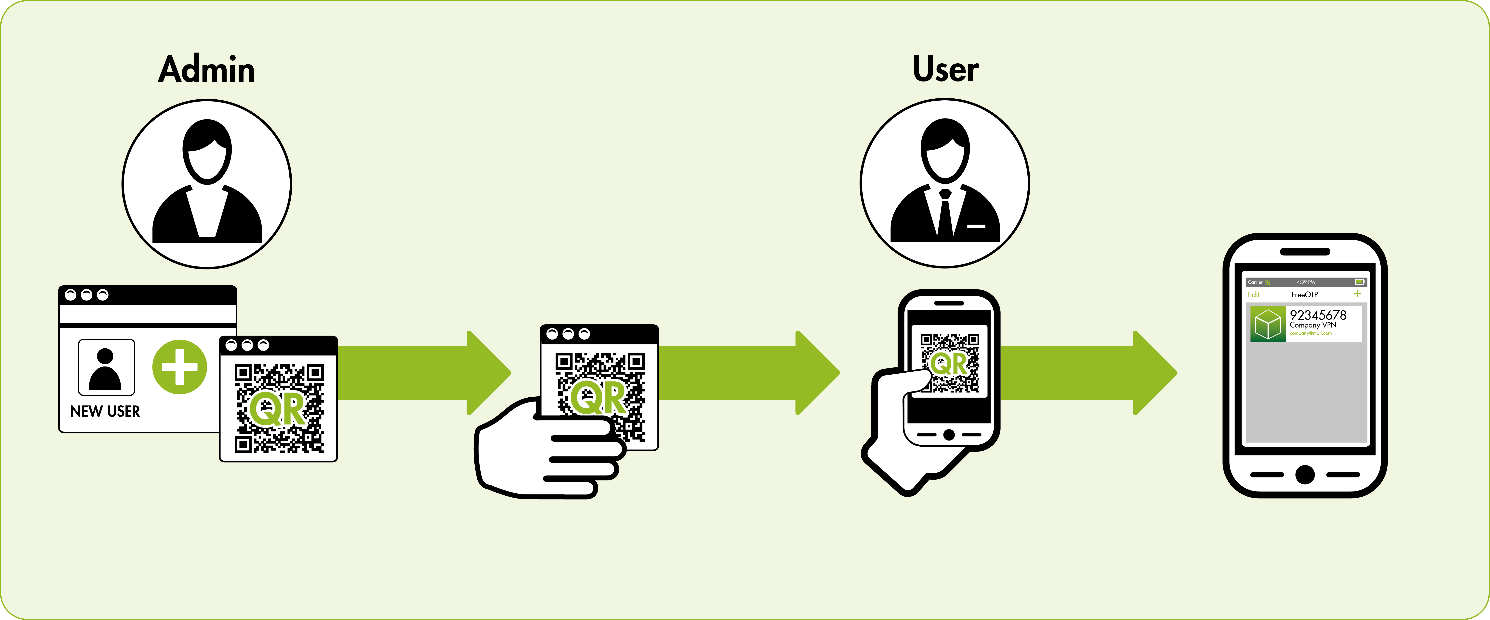
Once enabled, you will a screen like below where the password OTP secret and corresponding QR code is displayed for this specific user. Give the user the QR code by sharing it with them in secure way. If you need to remove OTP for a given user account, you can click the Disable OTP button.
Also, on the Authentication > Users page, you can see which users have MFA enabled in an easy way.
Configure Authenticator App
In order to generate the one-time passwords, each user has to setup an account in the application. The easiest way to setup an account is to take a picture of the QR code which contains the account information. The application generates a new one-time password every 30 seconds – and since the algorithm is time-based it does not require an Internet connection.
Figure 1 - Generic illustration of creating an account in an Authenticator app
User Login
After having added a One-Time Password secret to the user the login procedure will slightly change. The user must now also provide a valid token provided by the mobile application when logging into the VPN.
From the Endian Connect App:
-
In the connection profile when you configure the details for the connection to the UTM, turn on the field "One-time password enabled" at the bottom of the form.
-
In the main login screen of the Connect App, select the profile and press "CONNECT".
.
-
A pop up will be displayed asking for the OTP token from the user's smartphone application. Enter the token shown on the user smartphone and press "OK".
Keep in mind each token is typically only valid for 30 seconds and the application will typically display a countdown timer to show you how much time is remaining before a new token is displayed..
From third-party clients:
- User opens the VPN client application and prepares to login.
- Prior to typing the user password, the user opens the OTP application on their mobile device (links provided under "User Prerequisite")
- To login, the user types their normal password with a space followed by the OTP token (password<space>OTP token) displayed on their mobile device all in the password field of the VPN client software
Comments