Applies to Platform: EndianOS 6.x
Last update: 23 Mar 2026
An important feature for the Endian platform in 6.x is the addition of Docker to allow users to run containers locally on an Endian appliance. Docker solves one of the most common frustrations in software: making sure applications work reliably everywhere. By packaging software and its dependencies into portable containers, Docker removes the guesswork from setting up and sharing software environments.
Products Not Supported
-
Endian Edge V - due to limited resources, this product does not support Docker
How Docker Works? *
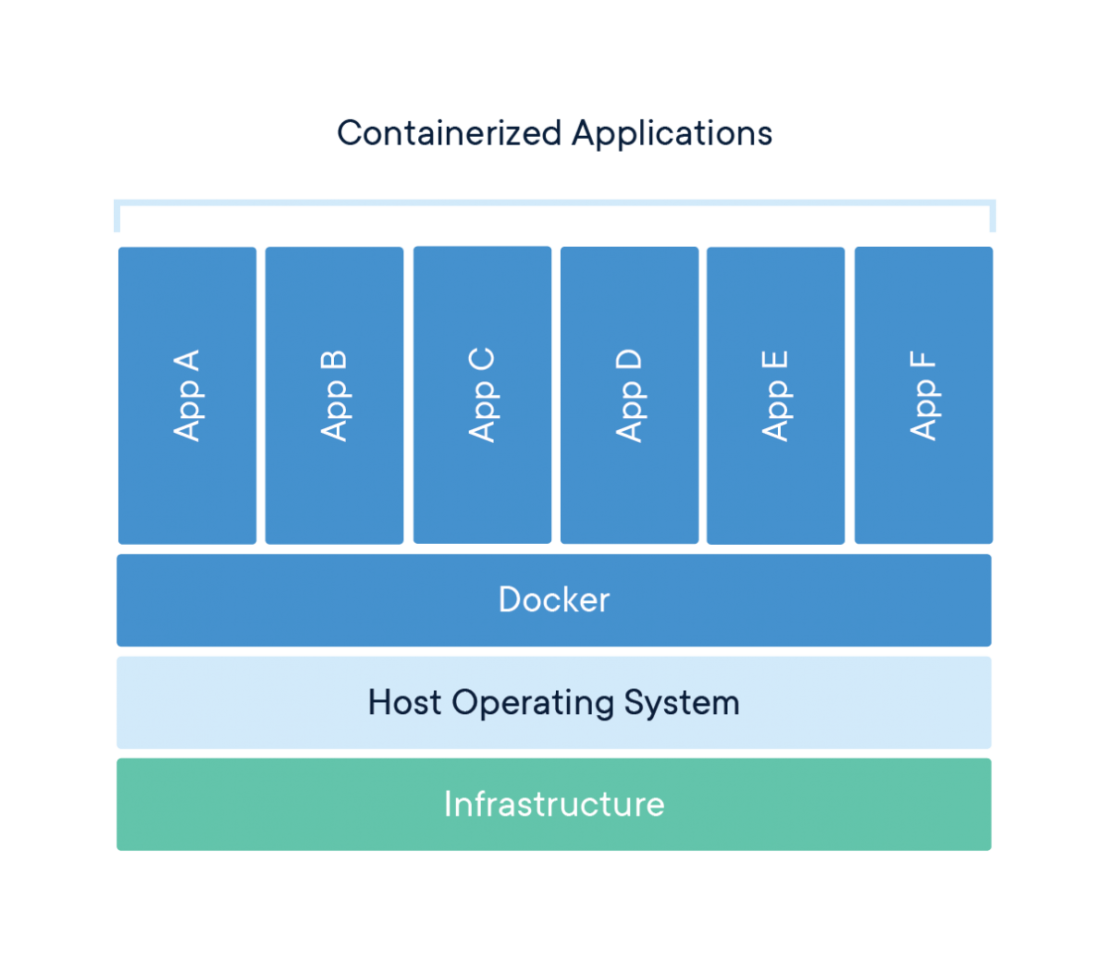
Docker provides a way to package software into standardized units for development, shipment and deployment. A container is a standard unit of software that packages up code and all its dependencies so the application runs quickly and reliably from one computing environment to another. A Docker container image is a lightweight, standalone, executable package of software that includes everything needed to run an application: code, runtime, system tools, system libraries and settings.
Container images become containers at runtime and in the case of Docker containers – images become containers when they run on Docker Engine. Available for both Linux and Windows-based applications, containerized software will always run the same, regardless of the infrastructure. Containers isolate software from its environment and ensure that it works uniformly despite differences for instance between development and staging.
* Taken from Docker website (https://www.docker.com/resources/what-container/)
Docker Components
1. Containers
A container is like a self-contained box that holds your application and everything it needs to run — libraries, settings, tools, and code. Containers are isolated, meaning they don’t interfere with other containers or your main computer.
- Lightweight and start in seconds
- Portable — run the same on any machine
- Isolated — problems inside one container don’t affect others
2. Images
An image is the blueprint or recipe for a container. Just like a recipe tells you how to bake a cake, a Docker image tells Docker how to build and run your application. Images are created once and can be used to spin up many containers.
- Images are read-only templates
- One image can create dozens of identical containers
- Images can be shared publicly or kept private
3. Docker Hub
Docker Hub is an online library of pre-made images. Think of it like an app store, but for software environments. You can download images for popular tools like databases, web servers, and programming languages — already configured and ready to go.
- Free to use for public images
- Thousands of official, trusted images available
- You can also upload and share your own images
4. Dockerfile
A Dockerfile is a simple text file with instructions that tell Docker how to build your image. You write it once, and Docker follows the steps automatically. Even if you’re not a developer, you can think of it as a checklist that sets up your application’s environment.
How to Use Docker on Endian
You can enable Docker on Endian by navigating to Docker > Settings page and click the Enable switch.
The only setting for the Docker application is the Insecure Registries setting. This allows an administrator to add an insecure registry - a Docker registry which does not support HTTPS or does not have a valid TLS certificate known by the Docker daemon. There are three ways to add an insecure registry:
-
IP Address + Port: Here you can enter an IP address and port to use for the registry.
-
CIDR Block: Here you can enter a network address and bitmask.
- Hostname + Port: Here you can enter an FQDN and port to use for the registry.
How to Install a Docker Container
The usage of Docker on Endian is done from the CLI (command line interface) and follows the standard usage and CLI commands as shown here.
Let's start with an example provided on the Docker documentation site that shows a simple example of pulling a container for nginx (an open source reverse proxy server application). You can find and follow the example by going to this link below and browsing at Step 2 - CLI:
https://docs.docker.com/docker-hub/quickstart/
Pull and run the NGINX docker container:
root@endian~#: docker run -d -p 8080:80 --rm nginx
This command breaks down as follows;
- - d : detaches the docker process to run in the background (so it doesn't run in the foreground)
- -p : publishes the container's port to the host (e.g. port 80 on docker publishes to 8080 on host system)
- --rm : removes the container and its volumes when it exits
You will see the container being downloaded, installed and run:
root@endian~#: Unable to find image 'nginx:latest'
locally latest: Pulling from library/nginx ec781dee3f47: Pull complete 980067d12da2:
Pull complete 4174e33a2c9e: Pull complete 6b40784e4837: Pull complete f0b77348d9b0:
Pull complete 0289d65812c3: Pull complete 9baba07a35b6: Pull complete Digest:
sha256:dec7a90bd0973b076832dc56933fe876bc014929e14b4ec49923951405370112
Status: Downloaded newer image for nginx:latest
Once it's done, you can verify its running with the following command:
root@endian~#: docker ps
CONTAINER ID IMAGE COMMAND CREATED STATUS PORTS NAMES e3dd5c3a11f8 nginx "/docker-entrypoint.…" About a minute ago Up About a minute 0.0.0.0:8080-80/tcp hungry_burnell
Now the container is running on TCP Port 8080 on the Endian appliance (which translates to TCP Port 80 on the container) but you can only access the container by default from the Green zone network. This means if you need access outside this network, you would need to modify the Docker firewall.
Navigate to Firewall > Docker Traffic > Incoming and click Add New Rule:
Next complete the new rule creation based on your needs. In this example below, we are trying to access the container from the WAN (Red) interface to show as an example.
-
Type: Select the source type (typically Zone/Interface)
-
Select Interface: Here we are choosing the Main Uplink
-
Protocol: Select TCP protocol
-
Destination Port: Enter the TCP port, in this case 8080
- Click Add Rule to create the rule
Now click Apply to apply the new rule.
At this point, you can now access the NGINX container web interface by browsing the GREEN or RED IP address of the Endian appliance on port 8080.
Comments